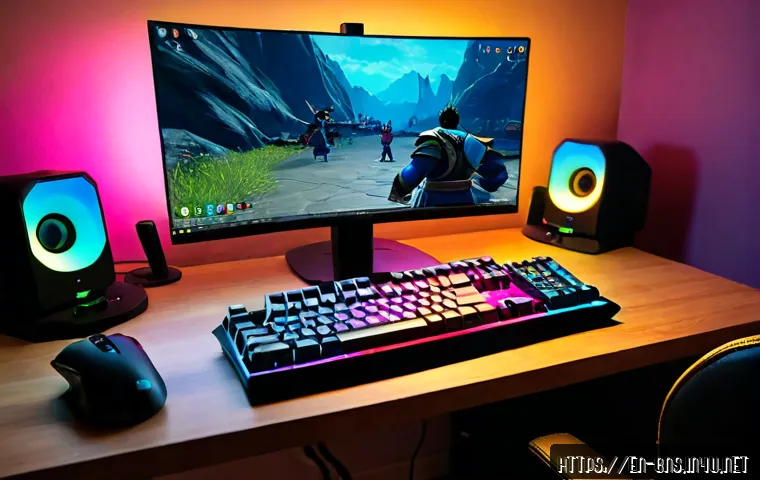
Start by testing resolution, effects, shadows, and draw distance in the busiest Blade & Soul combat you normally play. If targeted changes improve stability, keep your current PC; if performance remains inconsistent, compare upgrades based on the actual bottleneck rather than buying the most expensive part.

A clear combat view and steady frame pacing are often more useful than maximum visual detail during crowded fights. Graphics drivers, game patches, and operating system updates can change results, so treat every setup as a starting point.
Check current official Blade & Soul hardware information before purchasing components. Connection tools can also be worth comparing when the issue is network stability rather than graphics performance.
At a Glance
- Combat visibility: Test effects, shadows, character detail, and draw distance before lowering everything.
- FPS stability: Use busy combat areas for testing, because quiet zones can hide performance problems.
- Upgrade value: Tune settings first, then compare GPU, CPU, storage, cooling, and monitor options by the issue they solve.
| PC Situation | Adjust First | Keep or Upgrade? |
|---|---|---|
| Lower-performance PC | Resolution, effects, shadows, draw distance | Keep it if targeted reductions make crowded content stable; consider storage, cooling, or core component checks if they do not. |
| Mid-range PC | Effects and shadows first, then crowd-related detail | Balance visual quality with consistent combat performance before shopping for new hardware. |
| High-performance PC | Test higher visual options one group at a time | Consider a higher-refresh-rate monitor or connection solution only if the rest of the setup is already stable. |
Get a Stable Blade & Soul Setup Before Changing Everything
The best Blade & Soul setup is not automatically the highest preset. It is the setup that keeps combat readable and performance predictable in the content you play most often.
The fastest settings to test first
Start with resolution, visual effects, shadows, and draw distance. Higher resolution and these visual options generally require more GPU resources. Lower one setting group, enter a demanding encounter, and compare how the game feels before making another change.
Why stable frame pacing can matter more than a higher average FPS
A high average frame rate is less helpful if performance drops sharply when players, effects, and enemies fill the screen. Look for fewer sudden stutters during your normal combat routine. This is especially important for players who prioritize reaction timing and visual clarity.
A quick baseline test in busy combat areas
Use the same route or activity each time: the same crowded area, a similar group encounter, or another repeatable combat scene. Testing only in a quiet zone can lead to settings that look excellent until the screen becomes busy.
Graphics Settings That Balance Combat Visibility and FPS
Graphics tuning works best when each choice has a purpose. Preserve the detail that helps you read combat, and reduce the detail that adds load without improving your decisions.
Resolution and display mode: clarity versus GPU load
Higher screen resolution can improve clarity, but it also increases GPU demand. If crowded content becomes unstable, resolution is one of the first settings worth testing. Choose the display mode that behaves reliably on your system, then test it in the same demanding scenario.
Effects, shadows, and character detail: what to reduce first
Effects and shadows are practical early adjustments because they can become costly during active fights. Character detail may also matter when many players are nearby. Lower these settings gradually instead of moving every option to its minimum at once; otherwise, you will not know which change actually helped.
Draw distance and crowded-content adjustments
Draw distance can add visual context, but it may demand more resources when the world is busy. For group content, a slightly simpler scene can be preferable if it makes enemy actions and important effects easier to identify. The goal is not a flat-looking game; it is useful information without unstable performance.
Low, balanced, and visual-quality presets for different PC tiers
A low-performance setup should prioritize responsiveness and clear effects. A balanced setup should retain the visual settings you notice while reducing the ones that cause drops in crowded content. A higher-performance setup can test more detail, but should still avoid assuming that every maximum setting is valuable during combat.
PC Upgrade Value: When Settings Are Enough and When Hardware Is Not
Paid upgrades should solve a known problem. Before comparing gaming hardware, identify whether the issue appears to be graphics load, system responsiveness, storage pressure, heat, or display limitations.
GPU, CPU, RAM, and SSD: what each upgrade can solve
A graphics card is most relevant when higher resolution or visual settings appear to be the limiting factor. CPU performance can matter in crowded online scenes. Available RAM and storage conditions can affect the overall experience, while an SSD with adequate free capacity may help keep the system responsive. Thermal throttling can reduce performance, so cooling and airflow deserve a check before replacing major parts.
Comparing upgrade cost with expected gameplay value
Do not compare a component only by its product page. Compare the total purchase cost, compatibility with your current PC, warranty terms, and how long you expect to use it. A targeted upgrade can offer better value than rebuilding a system that only needs maintenance, storage space, or a settings adjustment.
When a higher-refresh-rate monitor is a better purchase than more graphics detail
A monitor upgrade may be more relevant for players who already have stable performance and value smoother motion or faster visual updates. It is not a substitute for unstable gameplay. Confirm that your PC can maintain suitable performance in your normal Blade & Soul content before prioritizing a display purchase.
Compatibility checks before buying PC components
Check physical fit, power requirements, connections, cooling space, and compatibility with the rest of your system. Confirm current official Blade & Soul requirements as well. Hardware requirements and recommendations can change, so avoid buying solely from an old forum post or another player’s build list.
Step-by-Step Performance Tuning and Common Mistakes

Create a repeatable benchmark route
Repeat the same demanding activity after each change. Note whether combat remains readable, whether stutters occur, and whether the PC becomes unusually hot or loud.
Change one setting group at a time
Adjust resolution separately from effects, then shadows, then draw distance. This makes the result easier to understand and prevents unnecessary visual sacrifices.
Close background apps and check power, heat, and storage conditions
Background applications can compete for system resources. Check available storage capacity, power settings, and signs of thermal throttling before deciding that Blade & Soul itself needs new hardware.
Avoid copying another player’s settings without matching resolution and hardware
A configuration that works for another player may not work on your PC, monitor, driver, or current game client. Use shared settings as ideas to test, not as guaranteed fixes.
Settings by Play Style and PC Situation
Competitive players prioritizing combat clarity and response
Prioritize stable performance, clear effects, and settings that make important actions easier to see. Avoid adding visual detail that makes crowded fights harder to read.
Group-content players dealing with effects-heavy scenes
Test reductions to effects, shadows, character detail, and draw distance in group scenarios. These are the situations where a quiet-area benchmark is least useful.
Casual players who want better visuals without unstable performance
Raise visual options slowly and keep the changes that remain stable in your usual quests and group activities. A balanced preset is often more satisfying than maximum quality with occasional disruption.
Laptop players balancing heat, battery settings, and noise
Laptop players should pay close attention to heat, power behavior, and fan noise. Use the system in the same power mode you normally use for gaming, and do not judge performance only during a short test.
Selection Criteria and Comparison Summary
Keep your current PC if focused settings changes improve your normal crowded content. Consider an upgrade if performance remains unstable after checking graphics options, background apps, storage space, and heat. Compare a graphics card by compatibility and the visual load you actually want to run; compare an SSD by capacity needs and system fit; compare cooling by case or laptop constraints; and compare higher-refresh-rate monitors only after confirming stable in-game performance. For gaming VPN or connection services, review server coverage, connection method, privacy terms, cancellation conditions, and whether the issue is truly network-related. Check official information and detailed product conditions on the relevant page before buying.
Closing Thoughts
Blade & Soul optimization is most effective when you test in real combat instead of guessing from a quiet area. Start with free changes, record what improves stability, and only then compare hardware or connection tools. A stable, readable setup is usually a better long-term target than maximum graphics settings. Recheck your configuration after major game, driver, or operating system updates.
Useful Things to Know
1. Performance behavior can change after updates. 2. Storage capacity and thermal conditions can affect the overall experience. 3. A network issue and a graphics issue can feel similar during gameplay, so test them separately. 4. Current official hardware guidance should be checked before any purchase.
Important Notes
No single setting list is best for every PC, resolution, server region, driver version, or Blade & Soul patch. Actual FPS changes from an upgrade cannot be confirmed without testing the existing system. Driver behavior and current official specifications should be verified before making a purchase decision.
Frequently Asked Questions
Q1. What Blade & Soul settings should I lower first for better FPS?
A1. Test resolution, visual effects, shadows, and draw distance first. Change one group at a time and evaluate the result in crowded combat rather than a quiet area.
Q2. Is upgrading a graphics card worth it for Blade & Soul, or should I adjust settings first?
A2. Adjust settings and check background apps, storage capacity, and thermal conditions first. A graphics card comparison becomes more useful when GPU-heavy settings remain the clear limitation during your normal gameplay.
Q3. Are gaming VPN services safe and useful for Blade & Soul connection issues?
A3. Their usefulness depends on the specific route and connection issue, so results are not guaranteed. Review privacy terms, server availability, cancellation conditions, and game policies, then test carefully to determine whether the problem is network-related rather than PC performance.